Oscillator Settings
The Oscillator Mode feature provides traders with two dynamic options for market trend visualization:
Oscillator Mode#
Overview#
The Oscillator Mode feature gives you two options for market trend visualization:
- Trend Mode helps you visualize trends by analyzing price action, detecting early trend shifts, and providing real-time confirmation of market direction.
- Strength Mode is similar to Trend Mode but weighs trend strength more heavily, so you can gauge how strong a trend is.
Both modes use adaptive learning algorithms that refine their read of market direction, aiming for early trend and reversal detection. These oscillators serve as alternative trend analysis tools that help you understand overall market dynamics.

Settings#
You can configure the Oscillator Mode based on your trading strategy and preferences.
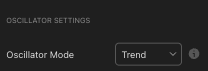
| Oscillator Mode (Dropdown Options) | Description |
|---|---|
| Trend Mode | Highlights market trends using AI-driven algorithms. |
| Strength Mode | Similar to Trend Mode but places greater emphasis on trend strength. |
Best practices & usage#
- Choose the right mode:
- Use Trend Mode to identify market direction and momentum shifts.
- Use Strength Mode to confirm whether a trend has enough strength to continue.
- Combine with other indicators:
- Both modes give useful insights, and they work well when combined with other technical indicators.
- Adjust for market conditions:
- Switch between Trend Mode and Strength Mode based on whether you want to follow trends or validate momentum strength.
Oscillator Sensitivity & Velocity#
Overview#
The Oscillator Sensitivity and Velocity settings let you customize how the oscillator reacts to price changes. You can adjust these settings to make the oscillator more or less responsive, depending on your trading style.
- Lower Sensitivity: The oscillator reacts more quickly to price changes, useful for short-term traders who want faster signals.
- Higher Sensitivity: The oscillator smooths out movements, suited to long-term traders who focus on stronger trends.
- Velocity Adjustment: Sets how fast or slow the oscillator adapts to market conditions, which affects its response time.
Settings#
The Oscillator Sensitivity and Velocity settings let you adjust how responsive the oscillator is to price changes.
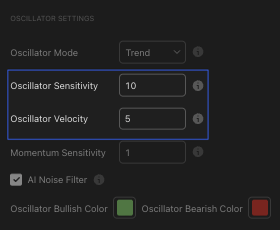
| Setting | Description |
|---|---|
| Oscillator Sensitivity | Lower values result in higher sensitivity (more signals). Higher values reduce sensitivity (fewer signals, more confirmed trends). |
| Oscillator Velocity | Controls the rate of change in the oscillator's movement. |
Best practices & usage#
- Adjust sensitivity based on trading style:
- Scalpers and day traders: Lower values (1-15) for faster signal responses.
- Swing and position traders: Higher values (15-30) for longer-term confirmations.
- Use the velocity setting to filter market noise:
- Low Velocity is useful in volatile markets where quick reactions are needed.
- High Velocity is better for stable market conditions, focusing on longer-term movements.
- Experiment with different settings:
- Finding the balance between sensitivity and velocity takes trial and adjustment based on market conditions and your preferences.
Oscillator Momentum#
Overview#
The Oscillator Momentum feature helps you understand market momentum strength and potential reversals. It shows momentum strength with zone width variations:
- Wide Zone: Strong momentum, indicating the trend is likely to continue.
- Tight Zone: Weak momentum, suggesting a potential reversal or market slowdown.
This feature helps you time entries and exits by analyzing how momentum shifts before price action follows.

Settings#
The Momentum Sensitivity setting lets you configure how reactive the momentum feature is to price changes.
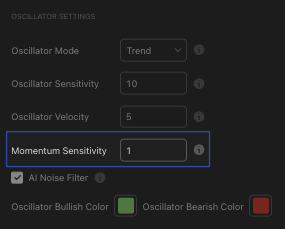
| Setting | Description |
|---|---|
| Momentum Sensitivity | Determines how responsive the momentum indicator is to price changes. Higher values create smoother trends, lower values make it more reactive. |
Best practices & usage#
- Watch for expanding and contracting zones:
- Expanding zones indicate strong momentum, useful for riding trends longer.
- Contracting zones signal potential exhaustion, so prepare for possible reversals.
- Use in combination with trend analysis:
- Pairing Oscillator Momentum with Oscillator Mode improves trend validation.
- Use momentum shifts to anticipate trend slowdowns or reversals.
- Adjust sensitivity based on market conditions:
- Lower sensitivity for stable markets.
- Higher sensitivity for volatile markets.
AI Noise Filter#
Overview#
The AI Noise Filter uses machine learning to reduce false signals and market noise. It smooths out oscillator movements to make the indicator more reliable, especially in choppy market conditions.
- It removes noise that leads to unnecessary trade signals.
- It improves signal clarity, helping you make more confident decisions.
- It gives a smoother experience, making trend identification more intuitive.

Settings#
The AI Noise Filter setting lets you enable or disable automated filtering of market noise within the oscillator.
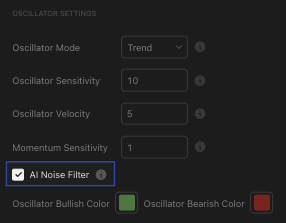
| Setting | Description |
|---|---|
| AI Noise Filter | Enables or disables the machine-learning-based noise filter. |
Best practices & usage#
- Use in highly volatile markets:
- The AI Noise Filter is useful in high-volatility conditions where markets fluctuate often.
- Combine with other indicators:
- Using Oscillator Momentum and the AI Noise Filter together helps filter out weak signals while keeping trend clarity.
- Enable for long-term analysis:
- Long-term traders can benefit from enabling the AI Noise Filter to remove short-term market fluctuations.