Signal Settings
The Signal Mode feature is the core of the indicator's trade signal generation. It allows you to choose between two distinct trading algorithms to match your strategy:
Signal Mode#
Overview#
The Signal Mode feature is the core of the indicator's trade signal generation. You can choose between two trading algorithms to match your strategy:
- Confirmation: This mode is for trend-following. It generates signals that align with the market trend, helping you enter trades in the direction of the primary momentum.
- Contrarian: This mode finds potential market reversals. It generates signals against the current trend, helping you spot potential tops and bottoms.
You can also choose between a Default and an AI-Enhanced algorithm. The AI-Enhanced option uses a more advanced model with better filtering.
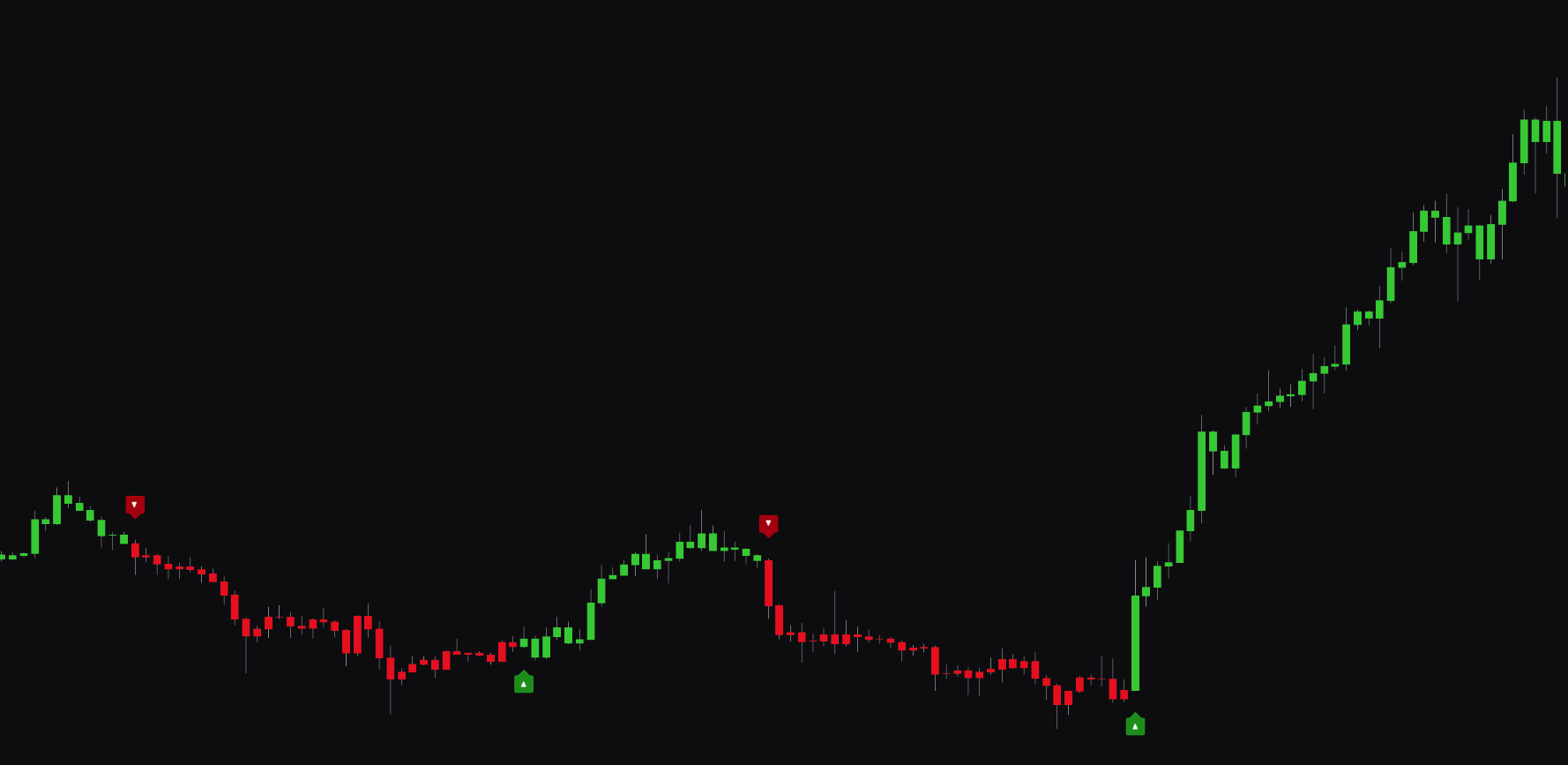
IMPORTANT: These signal modes help you get signals for your trading style. They are meant to form confluence within your technical analysis or strategy, not to be followed blindly. Past performance is not necessarily indicative of future results.
Settings#
You can configure the Signal Mode and adjust its sensitivity and speed to fit your trading style.
| Setting | Description |
|---|---|
| Signal Mode | Selects the signal generation algorithm. |
| Signal Sensitivity | Controls how sensitive the algorithm is to price changes. Lower values are more sensitive and generate more signals. Higher values are less sensitive and produce fewer, higher-confidence signals. |
| Signal Velocity | Controls how quickly the algorithm reacts to market changes. Auto is recommended, as it adapts to market conditions. |
| Advanced Algorithm | Toggles between the Default signal algorithm and the AI-Enhanced algorithm. |
Best practices and usage#
- Match the mode to the market:
- Use Confirmation mode in clearly trending markets to follow the momentum.
- Use Contrarian mode in ranging or choppy markets to find potential turning points.
- Start with AI-Enhanced:
- The AI-Enhanced algorithm is recommended for most users, as it provides better signal filtering.
- Adjust sensitivity for your trading style:
- Scalpers and day traders: May prefer a lower Signal Sensitivity (e.g. 3-6) for faster signals.
- Swing and position traders: May prefer a higher Signal Sensitivity (e.g. 7-12) to focus on more significant, confirmed trends.
Trade Exits#
Overview#
The Trade Exits feature adds visual cues on your chart to highlight potential exit points. These signals appear when market momentum shows signs of slowing or reversing, helping you decide when to take profit or cut losses.
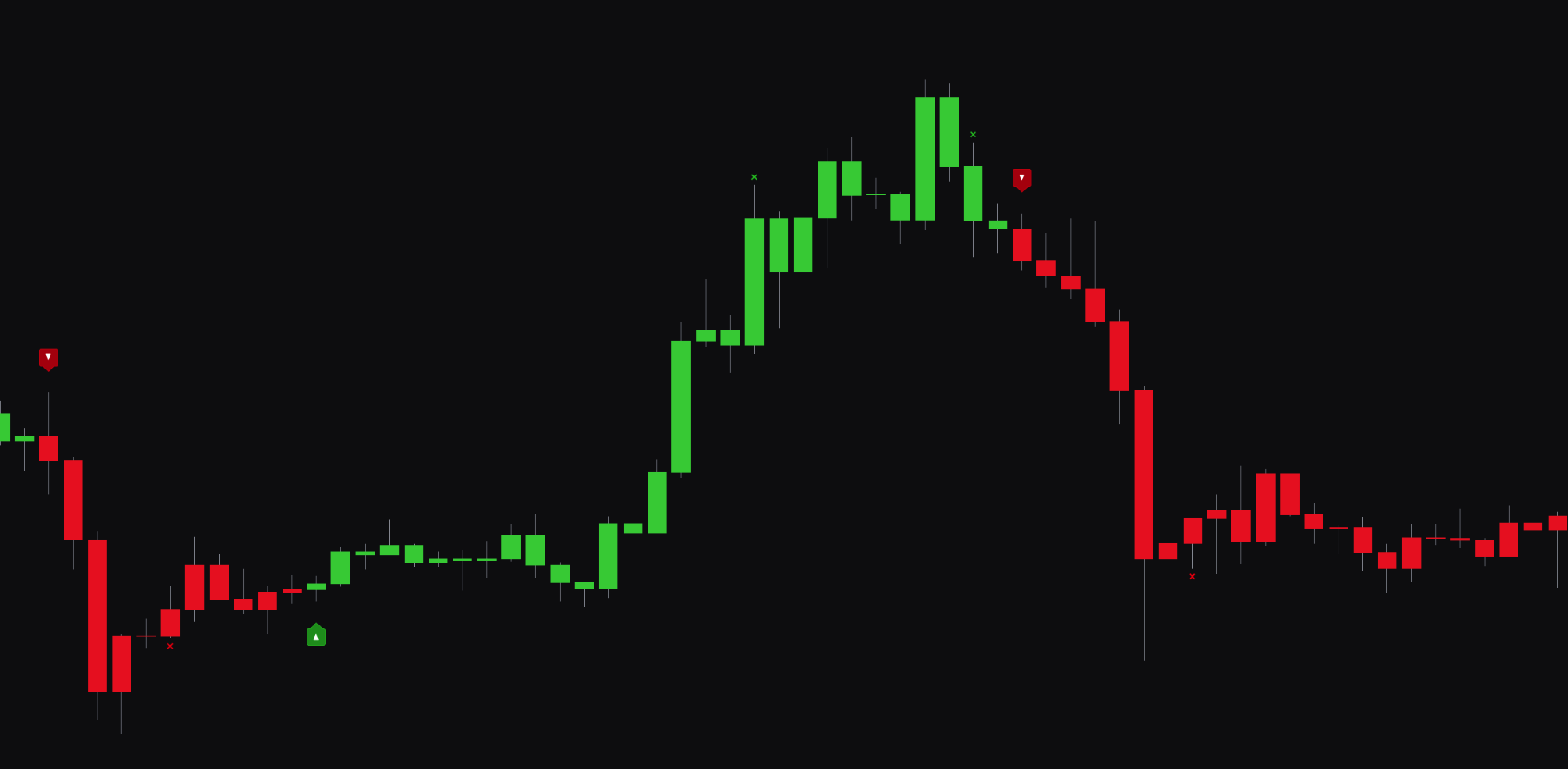
Settings#
You can enable or disable the exit signals and adjust their sensitivity.
| Setting | Description |
|---|---|
| Trade Exits | Turns the trade exit signals on or off. |
| Trade Exits Sensitivity | Controls the sensitivity of exit detection. A lower value is more responsive and shows more potential exit signals. A higher value shows only higher-confidence exit signals. |
Best practices and usage#
- Use as a confirmation tool: Trade Exits work best as a second opinion to help you manage open positions. An exit signal can warn that the current trend may be losing strength.
- Manage risk: If a trade is in profit and an exit signal appears, you might take partial profits or tighten your stop loss.
- Adjust sensitivity to your risk tolerance:
- For a lower risk tolerance, use a lower Exit Sensitivity (e.g. 1-2) to get earlier warnings.
- To give your trades more room, use a higher sensitivity (e.g. 3-5).
Signal Autopilot#
Overview#
The Signal Autopilot feature simplifies setup. It automatically optimizes the Signal Sensitivity and Signal Velocity settings for different trading styles. This suits users who want a quick setup without tuning every parameter.
Settings#
You can choose from three presets, or disable Autopilot to use your manual settings.
| Setting | Description |
|---|---|
| Disabled | When selected, the indicator uses the manual Signal Sensitivity and Signal Velocity settings you have configured. |
| Short-term | Optimizes the signal settings for short-term trading, such as scalping or day trading. |
| Mid-term | Optimizes the signal settings for mid-term trading styles. |
| Long-term | Optimizes the signal settings for long-term swing or position trading. |
Best practices and usage#
- For quick setup: Use Signal Autopilot when you want a baseline configuration without manual adjustments. Select the preset that matches your typical trading timeframe.
- For customization: To fine-tune the signal behavior, set Autopilot to Disabled and adjust the Signal Sensitivity and Signal Velocity manually.
- Match to your timeframe:
- Use Short-term for timeframes like 1-minute to 15-minute charts.
- Use Mid-term for timeframes like the 1-hour chart.
- Use Long-term for timeframes like the 4-hour or daily charts.