Learn About TradingView
TradingView is a powerful charting platform and social network for traders and investors. It allows users to track all markets, analyze data with a range of indicators, create and
If you have questions or issues about TradingView, their help center can help. Visit: https://www.tradingview.com/support/
Overview#
TradingView is a charting platform and social network for traders and investors. You can track markets, analyze data with a range of indicators, create and share trading ideas, and trade directly from the charts. The platform runs on desktop, mobile, and tablet. Its interface and features help you stay up to date with market trends.
Key features of TradingView#
- Access Lune Trading's indicators: TradingView lets you access our indicators.
- Technical analysis tools: TradingView gives you a range of charting tools and technical indicators to analyze markets. You can use them for stocks, commodities, forex, cryptocurrencies, and more.
- Social networking: You can share your analysis, ideas, and strategies with others. Follow other users, comment on their ideas, and learn from each other.
- Trading platform integration: You can connect your brokerage accounts to TradingView and place trades from the platform. This lets you analyze markets and trade in one place.
- Market data: TradingView gives you real-time and historical market data across many assets, including stocks, futures, major indices, forex, Bitcoin, and other cryptocurrencies.
- Alerts: You can set up alerts based on a range of conditions, delivered by email, SMS, or the platform itself.
- Customizable workspace: You can create custom screen layouts to suit your trading style or strategy.
TradingView uses a freemium model. Basic services are free, and premium features need a subscription. You do not need a TradingView subscription to use our indicators.
TradingView basics#
How to create a TradingView account?#
Creating a TradingView account is a straightforward process. Here is a step-by-step guide:
-
Visit the TradingView website: Go to tradingview.com in your web browser.
-
Sign up: On the TradingView homepage, find the "User" button, usually at the top right of the page. Click it, then click "Sign in".
-
Fill in your details: You are asked to provide some basic information. This includes your username, email address, and password. Remember your username. You need it to receive access to our indicators.
-
Verify your email: After you enter your details, you are asked to verify your email address. Check your email for a message from TradingView and click the link to confirm the address is yours.
-
Start using TradingView: Once your profile is set up, you can start using TradingView.
How do you change the symbol or ticker on a chart?#
To change the symbol or ticker on a TradingView chart, follow these steps:
- Open TradingView and go to the chart you want to modify.
- Find the search bar at the top left of the screen. The current symbol or ticker is shown in the search bar (e.g., AAPL for Apple Inc.).
- Click the search bar and start typing the name or ticker symbol of the asset you want (e.g., MSFT for Microsoft Corp.).
- A list of matching results appears as you type. Select the asset you want by clicking it.
- The chart updates to show the new symbol or ticker, along with its data and price action.
You can also use the "Watchlist" panel on the right side of the screen to switch between symbols or tickers. Click the asset in your watchlist to update the chart. If the asset is not in your watchlist, add it by searching for the symbol or ticker and clicking the "+" icon next to the result.
You can also type the name of the asset directly on your keyboard. A search box appears and you can select the symbol you want.
How do you change the timeframe of your chart?#
To change the timeframe of your chart on TradingView, follow these steps:
- Open TradingView and go to the chart you want to modify.
- Find the toolbar at the top of the chart. You see options such as timeframes like "1m", "5m", "15m", "1h".
- Click the dropdown arrow next to the current timeframe on the toolbar.
- A list of timeframes appears. Select the one you want (e.g., 1 minute, 1 hour, 1 day, or custom).
- The chart updates to reflect the new timeframe.
You can also use the shortcut keys (Alt + number) to switch between timeframes. For example, press "Alt + 1" for a 1-minute chart, "Alt + 2" for a 3-minute chart, and so on.
How do you add indicators to your chart?#
To add indicators to your chart on TradingView, follow these steps:
- Open TradingView and go to the chart you want to customize.
- Find the toolbar at the top of the chart. Click the "Indicators" icon (a small f(x) symbol) or press the "/" key as a shortcut.
- A search box with a list of popular indicators appears. Scroll through the list to find the indicator, or type its name in the search box.
- Once you find the indicator you want, click it to apply it to your chart. The indicator is applied right away, and you can customize its settings by clicking the gear icon next to the indicator's name in the upper left corner of the chart.
- To add more indicators, repeat steps 2 to 4.
Some indicators are overlaid on the price chart (e.g., Moving Averages), while others appear in separate panels below or above the main chart area (e.g., RSI or MACD). To remove an indicator, click the "x" icon next to the indicator's name in the upper left corner of the chart.
If you find an indicator that you like you can click the star next to its name to favorite it.
How do you create alerts?#
To create alerts on TradingView, follow these steps:
- Open TradingView and go to the chart you want to set an alert for.
- Find the toolbar at the top of the chart. Click the "Alerts" icon (a small bell symbol) or right-click anywhere on the chart and select "Add Alert" from the context menu.
- An "Alerts" window appears with settings to customize your alert.
- Condition: Choose the condition that triggers the alert, such as crossing a price level, an indicator value, or a combination of conditions.
- Value: Define the value for the selected condition. For example, if you choose a price level, enter the target price here.
- Options: Specify how the alert should behave. You can set it to trigger once, every time the condition is met, or only once per bar (candlestick).
- Expiration time: Optionally, set an expiration date and time for the alert. The alert is removed after this time.
- Alert actions: Choose how you want to be notified when the alert triggers, by pop-up, sound, email, or SMS.
- Message: Customize the message shown or sent when the alert triggers.
- After you configure the alert settings, click the "Create" button to activate the alert. The alert is now listed in the "Alerts" tab in the right-hand panel.
You can manage your active alerts by clicking the "Alerts" tab in the right-hand panel. To edit or delete an alert, click the gear icon next to it and select "Edit" or "Delete" from the dropdown menu.
How to update TradingView indicator(s)?#
To update your TradingView indicator you need to:
- Refresh your browser or mobile app to make sure you have the latest version of TradingView.
- Remove the outdated indicator from your chart by clicking the 'x' icon next to the indicator's name in the upper left corner of the chart.
- Add the updated indicator by clicking the "Indicators" icon (or pressing the "/" key as a shortcut) and going to the "invite-only scripts" section.
- Select the updated indicator from your invite-only indicators list, and it is applied to your chart.
The latest version of the indicator should now appear on your chart, with the most up-to-date features and improvements.
How to save your layout?#
Make sure you save your chart layout on TradingView after you update or modify your indicator. This makes sure the updates stay.
How do I receive update notifications?#
We announce our TradingView updates through our Discord server and our social media platforms. You may also receive instant update alerts or emails directly from TradingView. To make sure you get these notifications, turn them on in your profile. Go to your TradingView settings and do the following:
TradingView -> Settings -> Notifications -> SCRIPTS YOU'VE ADDED TO FAVORITES OR LIKED
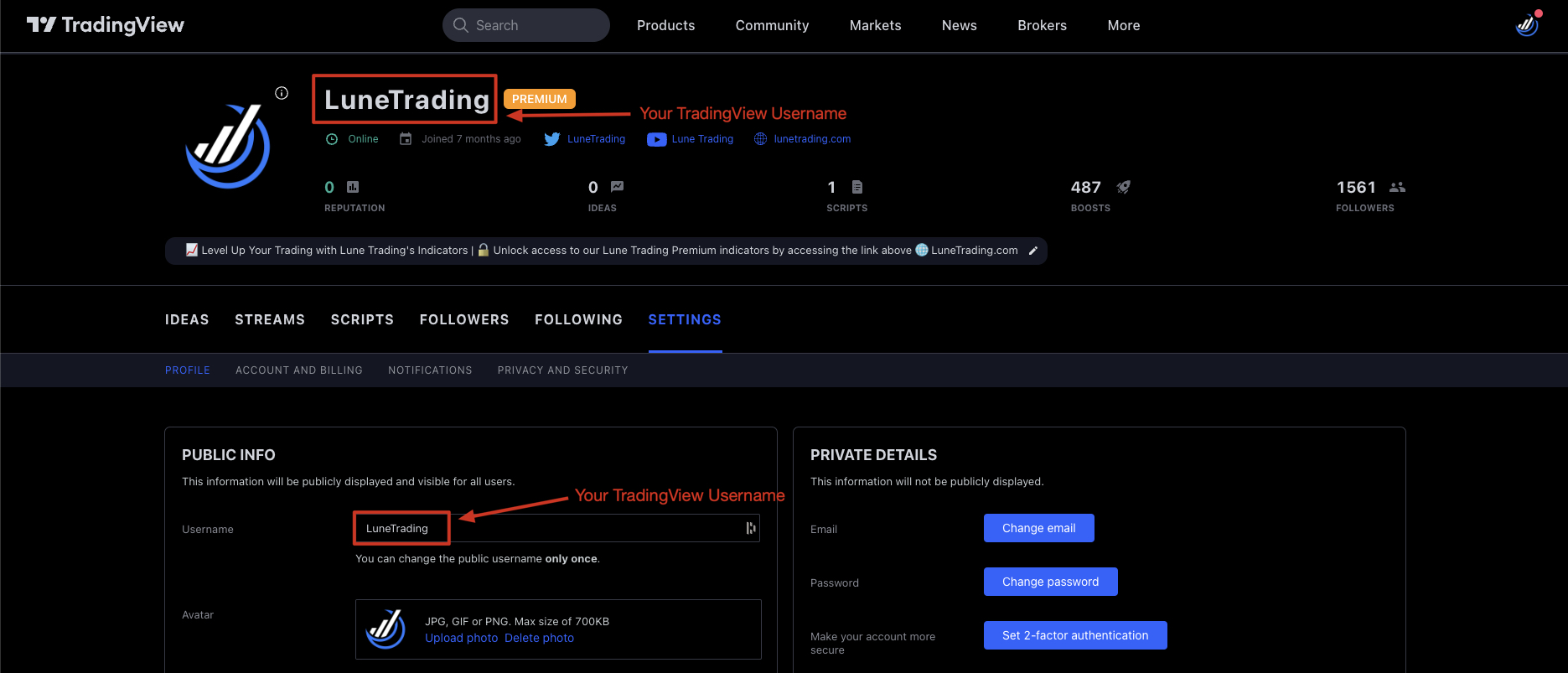
How do I find my TradingView username?#
- Sign in to your account at: https://www.tradingview.com
- Once signed in, visit this link: https://www.tradingview.com/u/#settings-profile
- Your TradingView username should now be visible.