Setup Guide
To access the Lune Automated Strategies, you must first purchase a Lune TradingView Strategies subscription(https://lunefi.com/products/tradingview-strategies).
If you have any issues, email [email protected] with your TradingView username.
Step 1: Purchase a Lune Pro subscription#
To access the Lune Automated Strategies, first buy a Lune TradingView Strategies subscription.
If you already bought a Lune Pro subscription, go to the next step.
Step 2: Create a TradingView account#
All Lune's strategies are hosted and run on TradingView.
- Visit tradingview.com to create a free account.
- No TradingView subscription is required to use our indicators and strategies.
Already have a TradingView account? Skip to Step 3.
Step 3: Connect your TradingView account#
After purchase, you'll be redirected to the Connect Panel.
To access the strategies:
- Access the Connect Panel
You'll be redirected automatically after your purchase. You can also access it with this link: https://lunefi.com/dashboard/tradingview-strategies - Connect your TradingView account
Enter your TradingView username under "TradingView Username" and click "Link Username". Make sure there are no typos in your username. - Confirm access
Once connected, refresh TradingView. You'll find the indicators under the "Invite-Only Scripts" section.
Access is granted instantly once submitted correctly.
Step 4: Add the strategy to your chart#
Once access is granted:
- Open TradingView and go to a chart.
- Click the Indicators icon at the top of the chart.

- Go to the Invite-Only Scripts section.
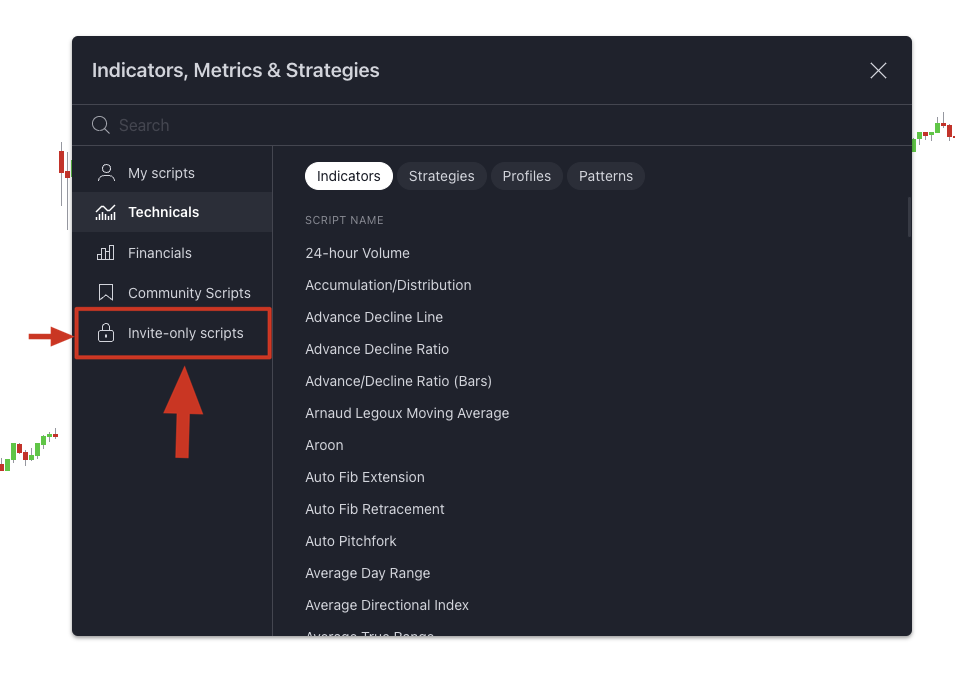
- Select the Lune strategy you want.
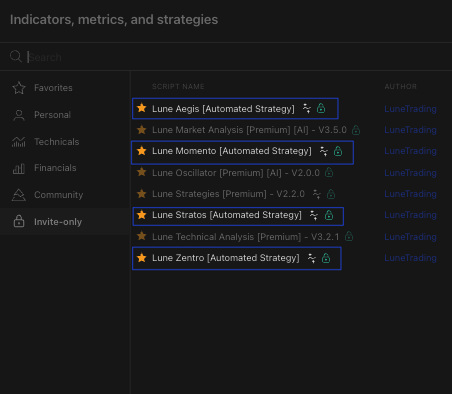
- The strategy loads on your chart.
Customize settings by clicking the gear icon ⚙️ next to the strategy's name in the upper-left.
Step 5: Optional, customize your chart#
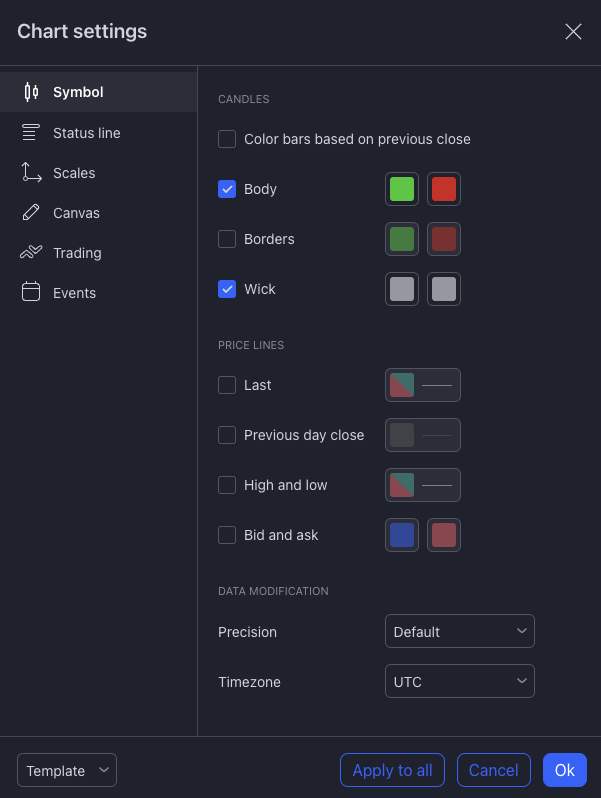
TradingView offers chart customization to match your trading style.
You can adjust:
- Chart theme and colors
- Symbol and label styles
- Grid and scale behavior
- Session and market settings
These settings do not affect the performance of your strategy, they are visual preferences.
Troubleshooting#
Why don't I have access?#
- Double-check that you entered the correct TradingView username.
- Refresh your browser or app.
- Make sure you are signed into the correct TradingView account.
How long does it take to get access?#
Access is usually granted instantly once your TradingView username is saved. In rare cases, please allow up to 1 hour.
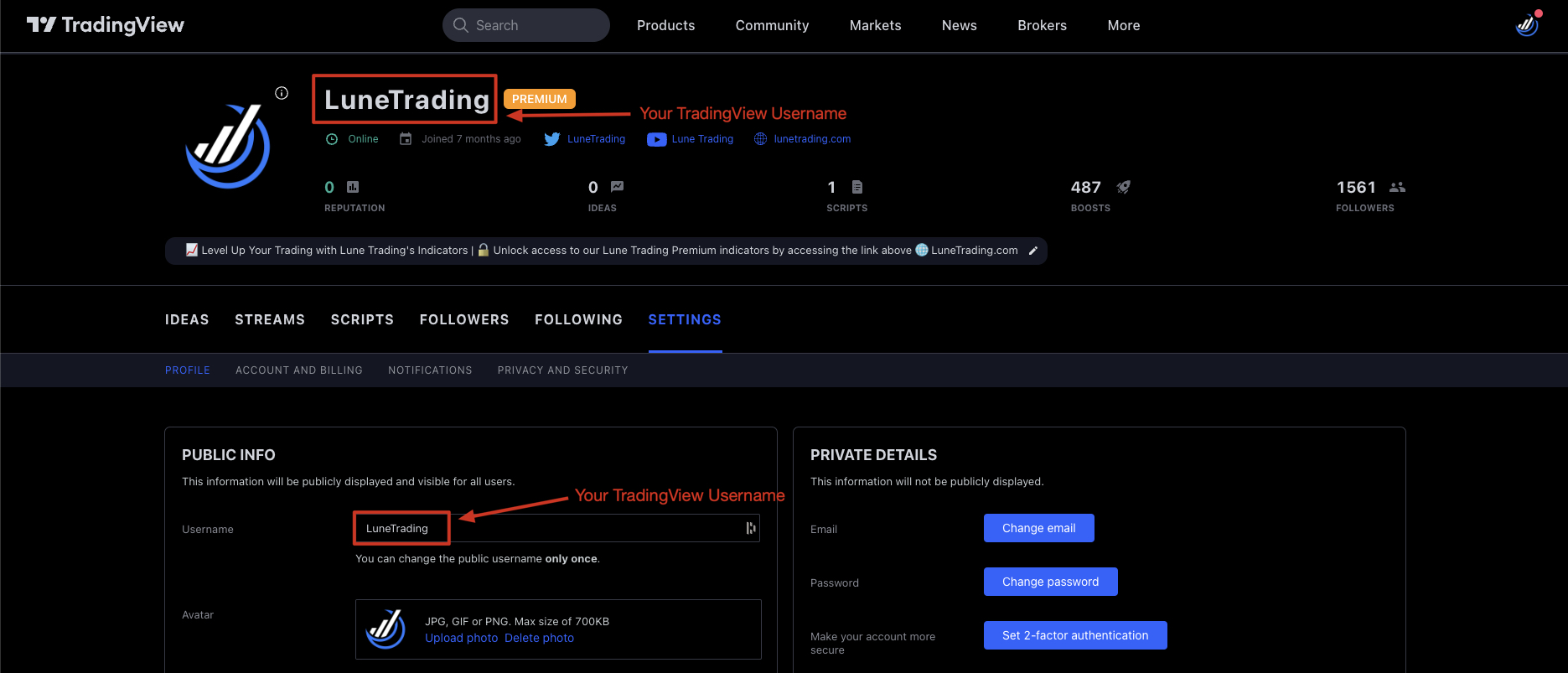
Where can I find my TradingView username?#
- Sign in to TradingView
- Visit: https://www.tradingview.com/u/#settings-profile
- Your username shows under your profile settings.
What is the "study_not_auth" error?#
This error means you haven't been granted access yet.
If you already subscribed:
- Refresh your chart or browser.
- Make sure you're signed in to the correct TradingView account.
- If the issue continues, email [email protected] and access will be granted within 6 hours.
How do I access the Connect Panel?#
- You can access it here: https://lunefi.com/dashboard/tradingview-strategies
- You were automatically redirected to it after checkout.
- You can also find it in your purchase confirmation email.
- Didn't receive an email? Check your spam or junk folder. If needed, contact support for help.